As of yesterday, August 12, 2026, Runway’s Gen-3 model can generate video with motion that syncs to an audio track. For musicians and creators, this is the feature we’ve been waiting for. The ability to match visual motion to a beat automatically solves one of the most tedious parts of making a music video. But if you’ve already tried it, you’ve hit the next two problems: style drift and terrible text.
Generate five clips for your song, and you’ll get five slightly different visual styles. And if you ask the AI to render the lyrics directly? You get warped, unreadable text with zero timing control. The one-click AI lyric video is still a myth. The professional solution is a hybrid workflow, and this guide breaks it down step-by-step.
The good news: AI video is finally synced to your music. The bad news?
The new Audio-to-Video Sync in Runway Gen-3 is a genuine leap forward. It analyzes your audio's rhythm and emotional tone to influence the generated motion. The result is raw footage that feels connected to your music. But for a full lyric video, that’s just the starting point. The two critical gaps it leaves are:
- Visual Inconsistency: A three-minute song needs more than one 4-second clip. When you generate a dozen clips to cover your verses, chorus, and bridge, you’ll immediately see 'style drift'. The lighting changes, the character's face warps, the color palette shifts. The result looks like a chaotic compilation, not a cohesive video.
- Unusable Typography: AI video models are notoriously bad at rendering clean, well-timed text. The letters are often distorted, the kerning is a mess, and you have no control over the animation keyframes. For a *lyric* video, this is a non-starter. The words are the entire point.
A one-click tool gives you a generic, uncontrollable result. A professional workflow combines the strengths of specialized tools. You use one for beat-matched motion, another for visual consistency, and a third for perfect typography. This is how you maintain creative control while letting AI handle the heavy lifting.
Step 1: Define your song's visual world in a MyUP Brandkit
Before you generate a single frame, you need to solve the style drift problem. This is where MyUP comes in. The foundation of a consistent project is a MyUP Brandkit. Forget thinking of a Brandkit as just your logo and brand colors. For a creative project like this, it’s a repeatable stylistic instruction set.
You define the entire aesthetic of your song's world once. Is it 'gritty risograph print with high contrast and dusty pinks'? Or 'luminous, ethereal sci-fi anime with neon highlights'? You build this visual identity inside MyUP by providing style notes, color palettes, and reference images. This Brandkit becomes the single source of truth that locks in the aesthetic for every single clip you generate. The AI is no longer guessing; it's following your explicit creative direction, every time.
This is the core of the workflow: you, the artist, make the creative decisions upfront. MyUP executes them consistently at scale.
Step 2: Generate a batch of on-brand, looping background clips
With your visual world defined in your Brandkit, you can now generate the raw materials for your video. The goal here isn't to create the final, full-length video in one go. It's to create a library of short, stylistically-locked background clips that you'll assemble later.
In MyUP, use your Brandkit to generate a series of 4-5 second looping videos. Create variations based on the song's structure:
- A few options for the verses.
- A more dynamic set for the chorus.
- A distinct visual for the bridge.
Because you're using a Brandkit, a clip prompted with "a lone figure walking through a neon-lit rainy street" will have the exact same color grading, texture, and mood as a clip prompted with "close-up on a rain-streaked window." There is no style drift.
If you want to establish a tactile, analog aesthetic from the start, a workflow like this is the perfect place to begin. It sets up a gritty, textured look that you can apply your Brandkit to for consistent results.
Workflow code: #myup-3xus-3l9x
Vintage Risograph Event Poster
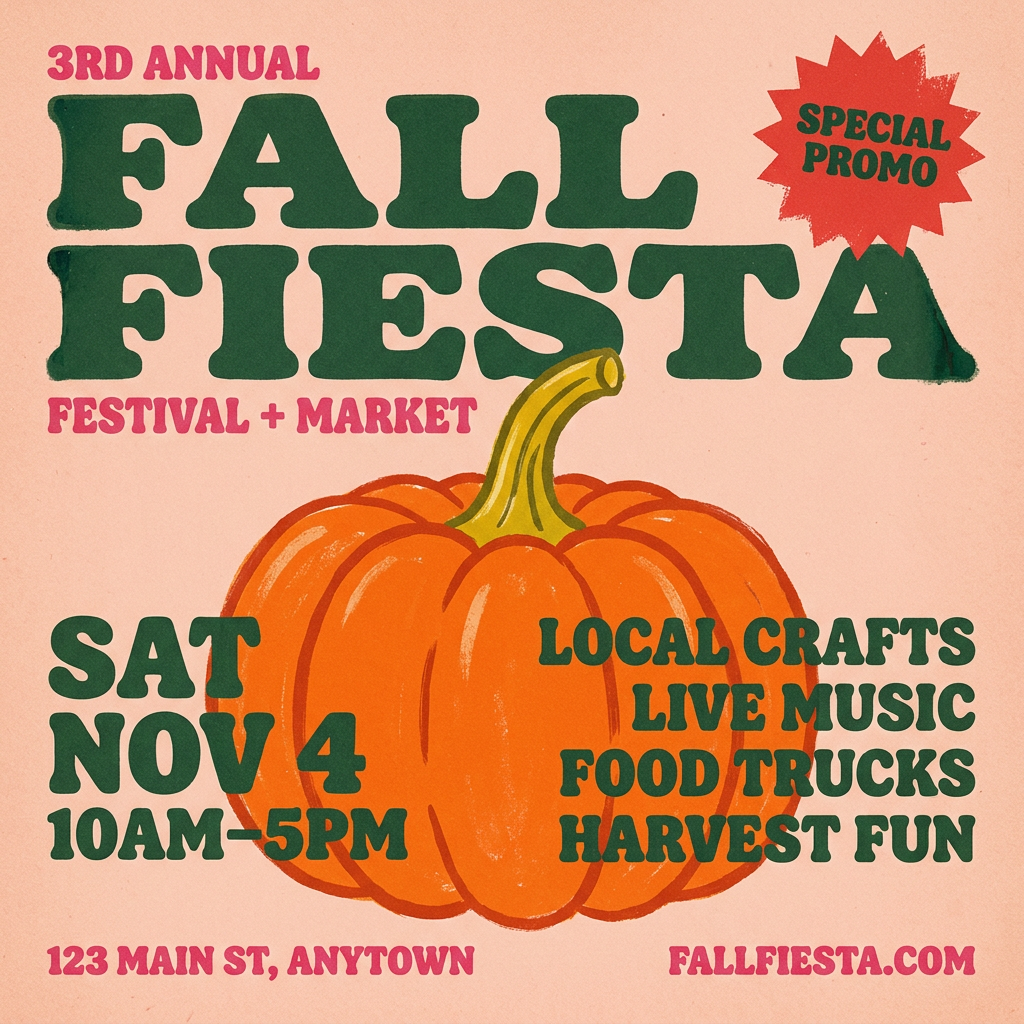
Turn any announcement into a gritty, tactile gig poster. It layers your text with an uneven letterpress ink texture over a dusty, warm pink risograph paper background. It’s perfect for giving social posts a real analog, screenprinted vibe.
Regenerate using your own assets.
Step 3: The hybrid step — adding beat-matched motion
Now you have a folder of visually consistent background clips from MyUP. The next step is to layer in the audio-reactive motion. This is the hybrid part of the workflow. Take the successful prompts and the stylistic DNA from your MyUP Brandkit and use them in a tool built for audio-sync, like Runway Gen-3.
By feeding it the same stylistic instructions that MyUP used, you're guiding the motion generation to stay within your established visual world. You're combining MyUP's strength (brand and style consistency) with Runway's strength (audio-reactive motion). The result is a set of clips that are not only synced to your music but also look like they belong to the same project.
Step 4: Assemble your clips and add lyrics that actually look good
Your final step is assembly and typography. Import your new batch of on-brand, beat-matched video clips into a dedicated video editor like Adobe Premiere Pro, DaVinci Resolve, or even CapCut. This is non-negotiable for a professional result.
Lay your clips out on the timeline, arranging them to match the flow of your song. On separate tracks above the video, add your lyrics using the editor's text tools. Here, you have total control:
- Font choice and design: Use your brand's actual fonts.
- Precise timing: Manually set the exact frame where each word appears and disappears.
- Clean animation: Use simple, effective keyframed animations (like fades or slides) that look clean and intentional, free of AI render artifacts.
Trying to get an AI model to handle typography is a common dead end for creators. As we've detailed before, the hybrid workflow for animated text is still the only reliable method for getting professional-grade results.
The complete workflow for a unique AI lyric video
One-click AI lyric video generators promise speed but deliver generic, flawed visuals. This hybrid workflow takes a little more effort but gives you complete creative control and a unique final product that represents your artistic vision. It combines the best of AI generation with the precision of human validation.
Here's the entire process, summarized:
- Define the Style: Create a MyUP Brandkit to establish a consistent visual world for your song.
- Generate Assets: Use the Brandkit in MyUP to batch-generate a library of short, stylistically-locked background video clips.
- Add Motion: Use your MyUP style prompts in an audio-reactive tool like Runway Gen-3 to create beat-matched versions of your clips.
- Assemble & Typeset: Import all clips into a video editor (like Premiere or CapCut) to arrange your scenes and add perfectly timed, clean lyrics on top.
Once your video is done, you can even use the same MyUP Brandkit to create all the promotional assets for the song's release—social media announcements, cover art, and more—ensuring your entire campaign is visually unified.
Workflow code: #myup-j6sp-glnw
Fruit Advertisement Campaign
Drop your product straight into a lush, hyperrealistic pile of fresh sliced fruit. It takes your clean product shot, blends it into rich organic textures, and generates a premium, slow-motion falling animation ready for a luxury cosmetic or food ad.
Regenerate using your own assets.
