You’ve seen the trend. With new AI video tools like Luma Dream Machine and Runway Gen-3, animating a static image is suddenly accessible to everyone. So you try it with your brand's most important asset: your logo. The result? A wobbly, distorted mess that melts your clean lines into an unrecognisable blob. Your brand integrity is gone in a flash of unpredictable motion.
This happens because general AI video models are trained on real-world footage, not the sharp vectors and precise typography of a logo. They don't understand brand integrity. This tutorial provides a different approach: a controlled, 60-second workflow for a subtle, professional logo animation that respects your brand.
Why most AI video tools butcher your logo
General-purpose AI video models are designed for creative exploration, not brand precision. When you feed them a clean graphic like a logo and ask them to 'make it move,' they interpret the request through the lens of their training data—which consists of things like oceans, people walking, and cinematic pans. They don't see a logo; they see a collection of pixels to be re-rendered with plausible motion.
This leads to common failures:
- Wobbly Lines: The AI tries to add 'natural' motion to perfectly straight lines, causing them to jitter and warp.
- Distorted Typography: Letterforms are treated as shapes to be morphed, losing their kerning, weight, and legibility.
- Inconsistent Color: The model might introduce unwanted gradients or color shifts that violate your brand's specific hex codes.
For a core brand asset, you don't want creative interpretation. You want control. You need a workflow that prioritizes simple, intentional motion over flashy, unpredictable effects.
The 60-second workflow for a professional logo animation
This workflow uses a direct, instruction-based approach to generate a clean MP4 file of your animated logo. It’s not about complex timelines or keyframes; it’s about giving the AI a clear, simple command that it can execute without destroying your asset.
Step 1: Prepare your asset
Start with a high-resolution PNG of your logo with a transparent background. A resolution of at least 1024x1024 pixels is ideal. This ensures the AI has enough detail to work with and avoids pixelation in the final video.
Step 2: Use a simple, direct prompt in MyUP
Upload your logo PNG to the MyUP AI Video generator. The key is to write a prompt that describes the motion precisely and leaves no room for creative misinterpretation. Instead of 'make this logo look cool,' use specific motion design language. Your MyUP Brandkit can automatically define the background color, ensuring your logo appears on your exact brand color without you needing to specify the hex code every time.
Step 3: Generate and validate the MP4 output
MyUP will execute the prompt and generate a short video file. Because the instruction was simple and direct, the output will be a clean animation that you can immediately use. The user validates the result; MyUP handles the production.
Copy-and-paste prompts for professional results:
- "Animate this logo with a simple, slow fade-in from white over 3 seconds."
- "Create a subtle, slow zoom-in on this logo with a slight pulse effect, on a black background."
- "Animate this logo with a clean, professional slide-in from the left, coming to a gentle stop at the center."
- "Make this logo gently float up from the bottom of the screen and settle in the middle."
From animation to asset: putting your new logo to work
An animated logo on its own is just a file. Its real value comes when it's part of a larger piece of content. You can use it as a video intro, an outro, or as a dynamic element within a social media post. The clean, minimalist style of the animation sets a professional tone that should carry through the rest of the asset.
For example, you can take your new MP4 and combine it with product imagery, ad copy, and your brand fonts to create a complete, ready-to-publish social media post. This is where a workflow becomes essential—it connects the creation of one asset directly to the production of another, maintaining brand consistency throughout.
Workflow: Create a social post featuring your animated logo
Instead of manually combining your animated logo with other elements in a complex video editor, you can use a workflow that automates the composition. This MyUP workflow takes your product image and brand information, then builds a post around it, where you can easily incorporate your new animated logo as a branded intro or overlay.
Workflow code: #myup-kbgo-tlle
Product Brand Post
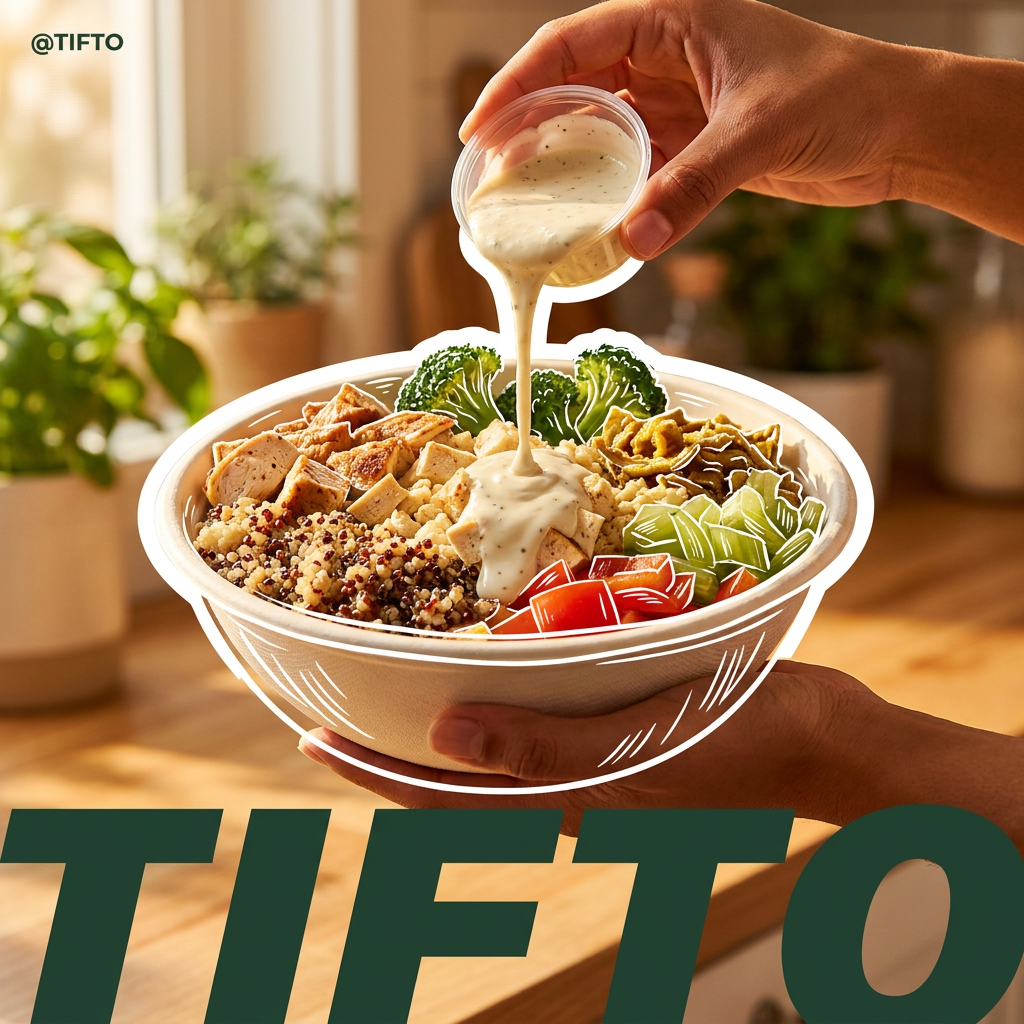
Drop in your product to generate a cohesive nine-post Instagram grid. It blends warm lifestyle photography and flat-lay packaging with bold hand-drawn doodles, collages, and urban billboard mockups. Everything automatically styles itself to your brand's colors.
Regenerate using your own assets.
Keep it consistent: matching your static visuals to your animation style
The aesthetic of your logo animation—clean, minimal, professional—should be reflected in your other brand visuals. If your logo fades in gently, a chaotic, cluttered static poster will feel jarring. Brand consistency is about creating a unified visual language across all formats, both static and dynamic.
You can use the same principle of simple, direct instruction to generate static assets that match your animation's style. By focusing on clean layouts, high-quality imagery, and on-brand typography, you build a cohesive brand world. For more ideas on creating animated assets, see our guide to creating AI animated posters that don't look generic.
This workflow for a minimalist poster is designed to create visuals that complement a subtle animation style.
Workflow code: #myup-fy77-jljs
Minimalist Elegant Product Advertising Poster
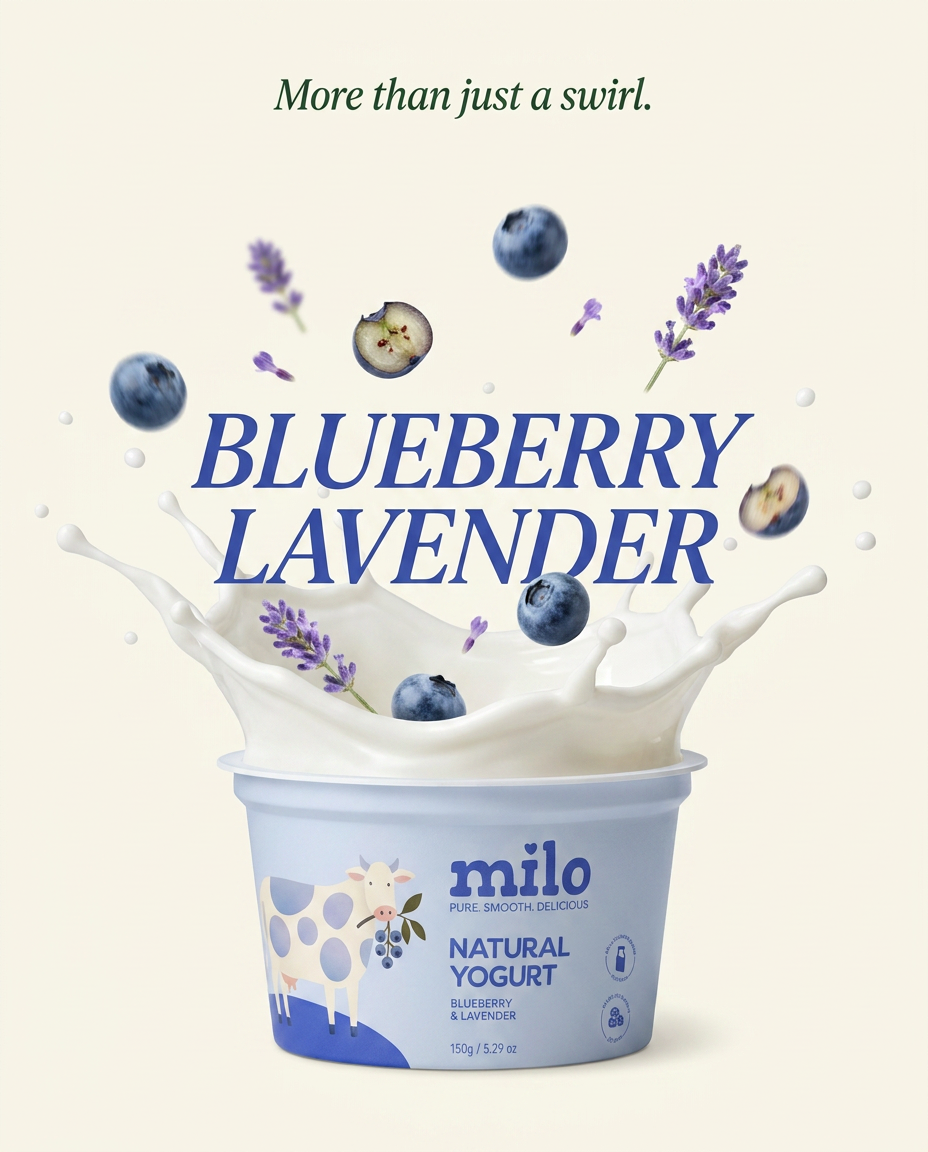
Turn any product shot into a high-end editorial ad. It places your item against a soft cream background with airy spacing and adds elegant, small serif typography at the top. Great for wellness or luxury brands wanting a calm, minimal aesthetic.
Regenerate using your own assets.
Workflow code: #myup-k4td-9k6z
Minimalist Poster
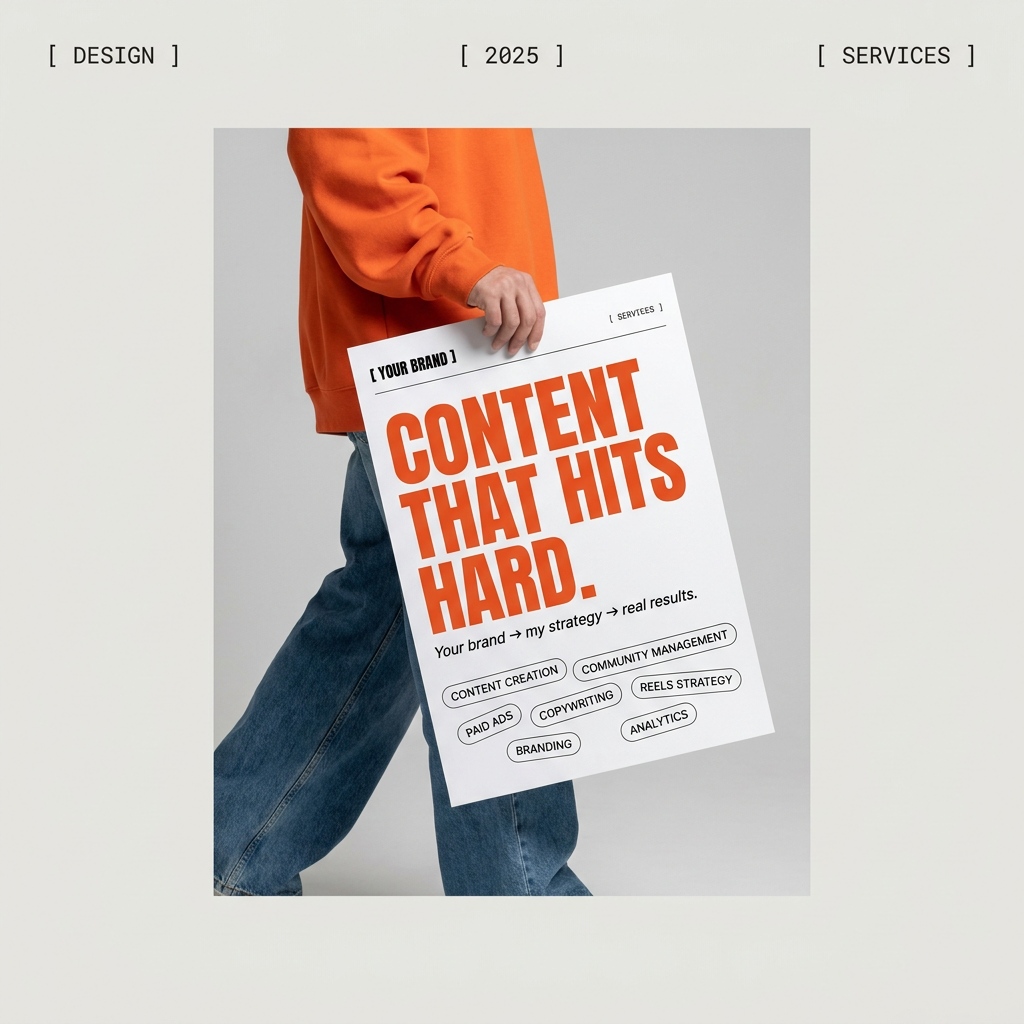
Give your social feed a clean, gallery-like aesthetic. This layout frames your images with structured mono typography and soft, neutral backgrounds for a high-end editorial look. It's perfect for minimal product launches or brand announcements.
Regenerate using your own assets.
The final check: when to use AI for animation (and when not to)
This AI workflow is the perfect solution for creating clean, simple logo animations for video intros, social media posts, and presentations. It's fast, controllable, and respects your brand identity. It's an ideal way to create professional branded GIFs and other short video assets.
However, it's not the right tool for every job. If you need complex, multi-layered motion graphics with custom keyframing and advanced effects—the kind of work done in Adobe After Effects—you still need a professional motion designer. The MyUP point of view is simple: use AI for what it does best. For core brand assets, that means executing precise, controlled instructions to produce consistent content at scale. For everything else, trust the specialist.
To create a simple, static announcement that pairs well with your new animation, you can use a workflow like this one.
Workflow code: #myup-k4td-9k6z
