
You tried one of those 'AI logo animators'. You uploaded your logo, clicked a button, and got back... the same swoosh-and-fade you've seen a dozen times. It's clean, it's fast, and it's completely devoid of personality. Your personality.
The problem isn't the AI. It's the template-based approach that treats your brand as a placeholder. Your brand is unique; your logo animation should be too. Instead of picking from a list of tired presets, this workflow shows you how to use AI to build a custom animation from scratch that is true to your brand's identity.
Why that 'one-click' AI logo animation looks so cheap
A logo animation is more than just a video intro. It's the first expression of your brand's visual energy. Does your brand feel energetic and bold? Calm and elegant? Playful and quirky? A generic template can't answer that question. It just makes your logo move.
This is the core failure of most logo animation generators. They start with a pre-built motion path and force your logo into it. The result is a disconnect. Your sharp, minimalist logo is suddenly doing a bubbly pop-and-wiggle animation designed for a kids' channel. It instantly dilutes your brand identity and signals a lack of originality. In a crowded market, looking generic is the fastest way to be forgotten.
A custom animation, by contrast, starts with your brand. It translates your brand's personality into a unique 'motion identity'. This doesn't require learning complex software like After Effects. It requires a workflow that puts brand strategy before AI execution.
The 3-step workflow for a custom, on-brand animation
We'll build your animation inside MyUP.ai, but not by clicking a 'make it move' button. We'll follow a three-step process that ensures the final result is born from your brand strategy. The AI executes the production; you validate the creative direction.
- Define your brand's motion identity: First, we strategize. We'll decide what kind of motion and energy fits your brand's personality.
- Generate your on-brand scene: Next, we'll use your MyUP Brandkit to create a unique static background or environment for your logo.
- Animate your logo with controlled motion: Finally, we'll combine the logo and the scene, using AI to generate motion that follows our strategic direction.
Step 1: Define your brand's motion identity
Before you open any tool, answer this: what is your brand's energy? Write down three to five words that describe it. For example:
- Tech Startup: Bold, fast, precise, futuristic.
- Skincare Brand: Gentle, flowing, soft, organic, subtle.
- Coffee Shop: Warm, energetic, handcrafted, rustic.
These words are your creative brief for the AI. They will guide every decision we make. A 'futuristic' brand might use sharp, linear movements and digital glitch effects. An 'organic' brand would use slow, flowing reveals and natural textures. This simple exercise is the difference between a generic animation and a piece of brand storytelling.
Step 2: Generate your on-brand scene
Now we move into production on MyUP.ai. Instead of placing your logo on a plain black or white background, let's create a custom scene that reinforces your brand's aesthetic. This is where your MyUP Brandkit is essential. It provides the AI with your exact brand colors, fonts, and overall style, ensuring consistency from the start.
Your goal is to create a static image that will serve as the backdrop for your animation. This could be an abstract texture, a stylized product shot, or an environmental photo that captures your brand's mood. For instance, if your brand is energetic and retro, you could generate a vibrant, graphic background.
You can use a workflow designed for creating bold, stylized visuals to get started instantly. This template uses your brand identity to create a poster-style image that can be easily repurposed as an animation background.
Workflow code: #myup-xbur-hzoi
Bold Retro Yellow Event Poster
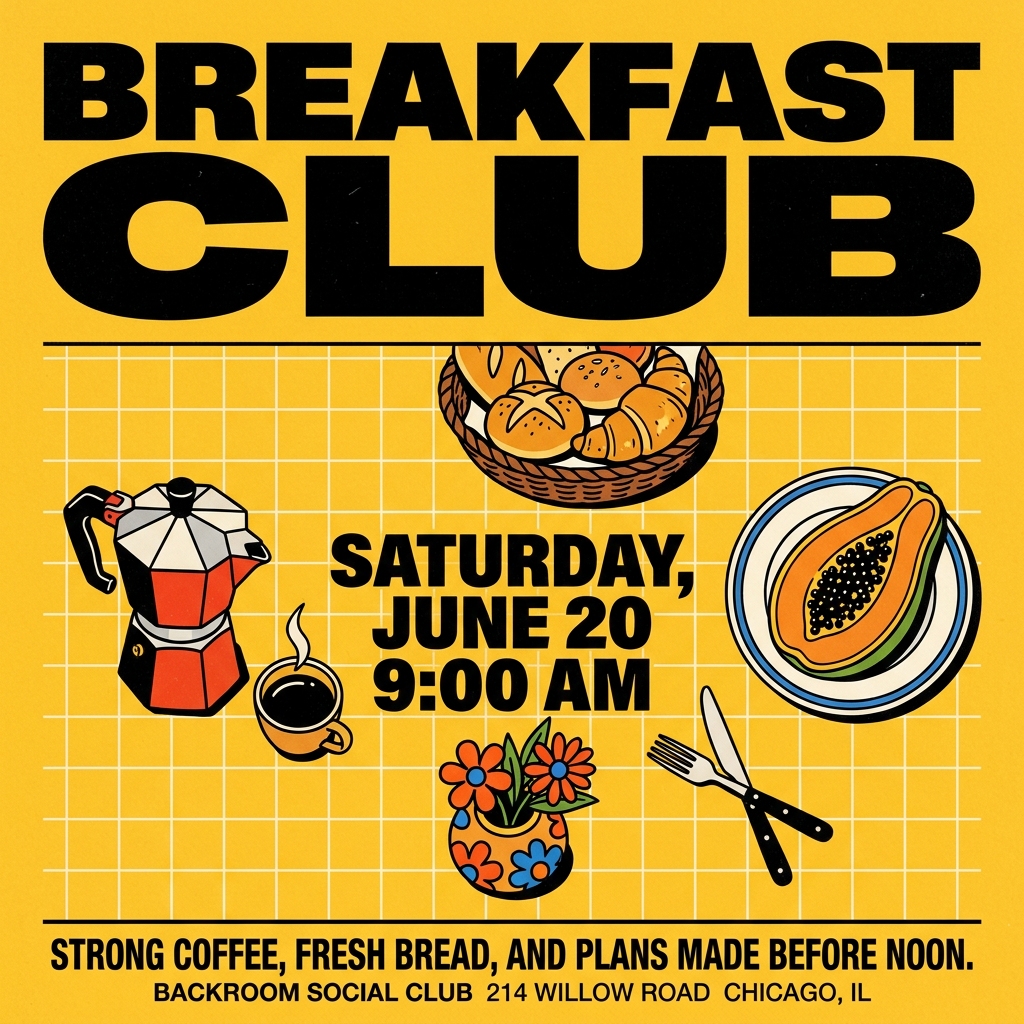
Turn your branding or event details into bold, nostalgic posters. It blends vibrant warm backdrops with a clean, retro square grid pattern to make any announcement look like a classic piece of mid-century graphic design.
Regenerate using your own assets.
Step 3: Animate your logo with controlled motion
With your logo (pulled from your Brandkit) and your custom background image, you're ready to create the motion. In MyUP, you can use the image-to-video function to animate this static composition. The key is to use the motion identity words from Step 1 to guide your prompt.
Don't just ask the AI to 'animate this image'. Give it specific instructions based on your strategy. For example:
- For the 'organic' skincare brand: 'Animate this image with a gentle, slow zoom in. Make the floral elements subtly shimmer.'
- For the 'futuristic' tech brand: 'Animate this with a fast, sharp dolly-in effect. Add a subtle data-glitch overlay.'
This is where you take creative control. You're not picking a template; you're directing the AI to create a specific motion style. For brands aiming for an elegant, high-end feel, a workflow focused on subtle, cinematic motion can produce stunning results.
Workflow code: #myup-5q78-bln0
Luxury Floral Product Editorial
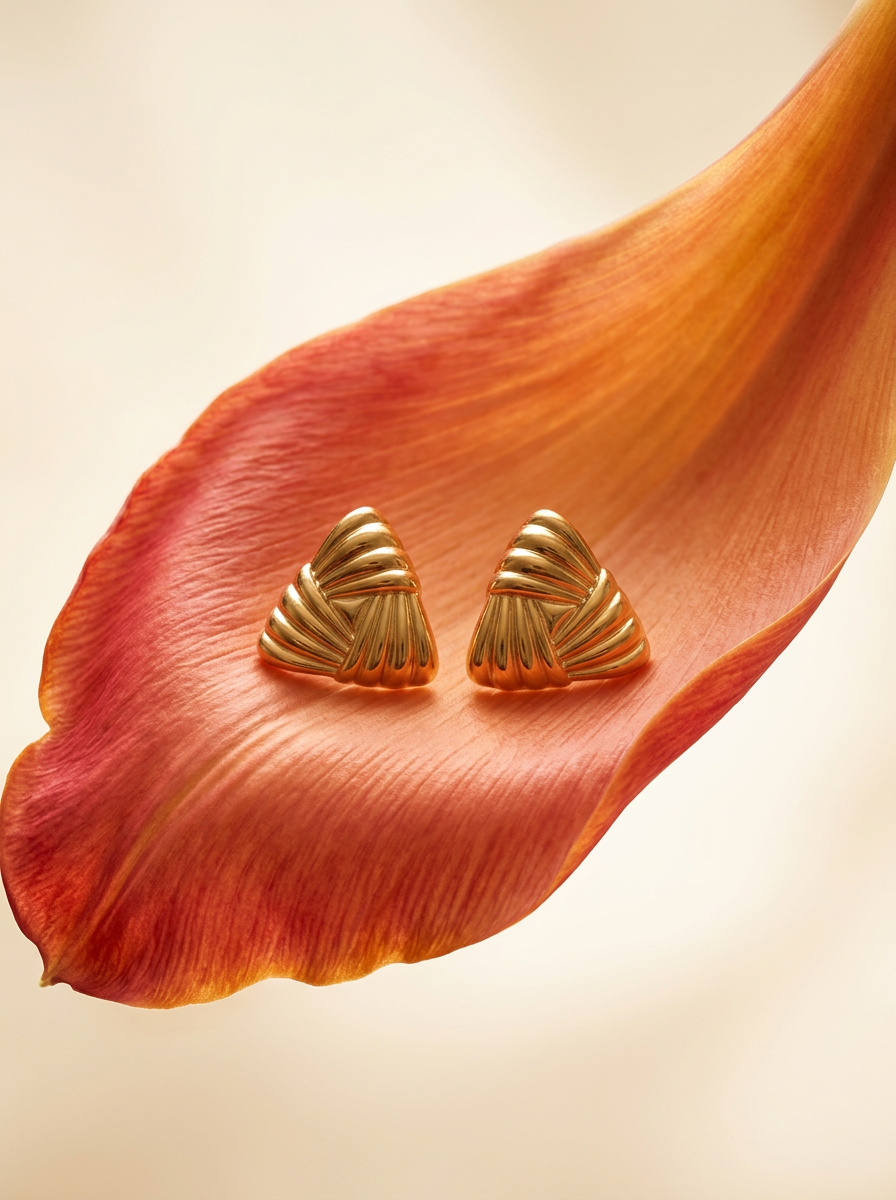
Place any product in an ultra-minimalist, warm studio space. It wraps your item in a seamless cream and beige backdrop with a super soft bokeh that melts away, making the details pop. It’s perfect for giving goods a clean, high-end look.
Regenerate using your own assets.
You can iterate on this step, adjusting the prompt to get the speed and style just right. The user validates, and MyUP handles the rendering. The result is a short video clip that is 100% custom and 100% on-brand.
Beyond the intro: Applying your motion identity everywhere
This workflow isn't just for a one-off logo animation. It's for creating a consistent motion language for your brand. You can use the same process to create animated social media posts, video ad intros, or dynamic website elements. By starting with your Brandkit and motion identity every time, you build a recognizable and cohesive brand presence across all video content.
For example, you can extend this workflow to create a complete, animated social media post. Start with your Brandkit, generate the visual, add your on-brand text, and then apply the same controlled motion you defined for your logo. This creates a powerful, unified look and feel for all your animated content, something you can't achieve when you're just dropping your logo into different templates. It's how you move from making single assets to building a real brand system, much like you would for a custom presentation.
This workflow for a social post combines product imagery, brand colors, and text into a single, ready-to-animate asset.
Workflow code: #myup-3sro-edbt
Brand Clothes Post
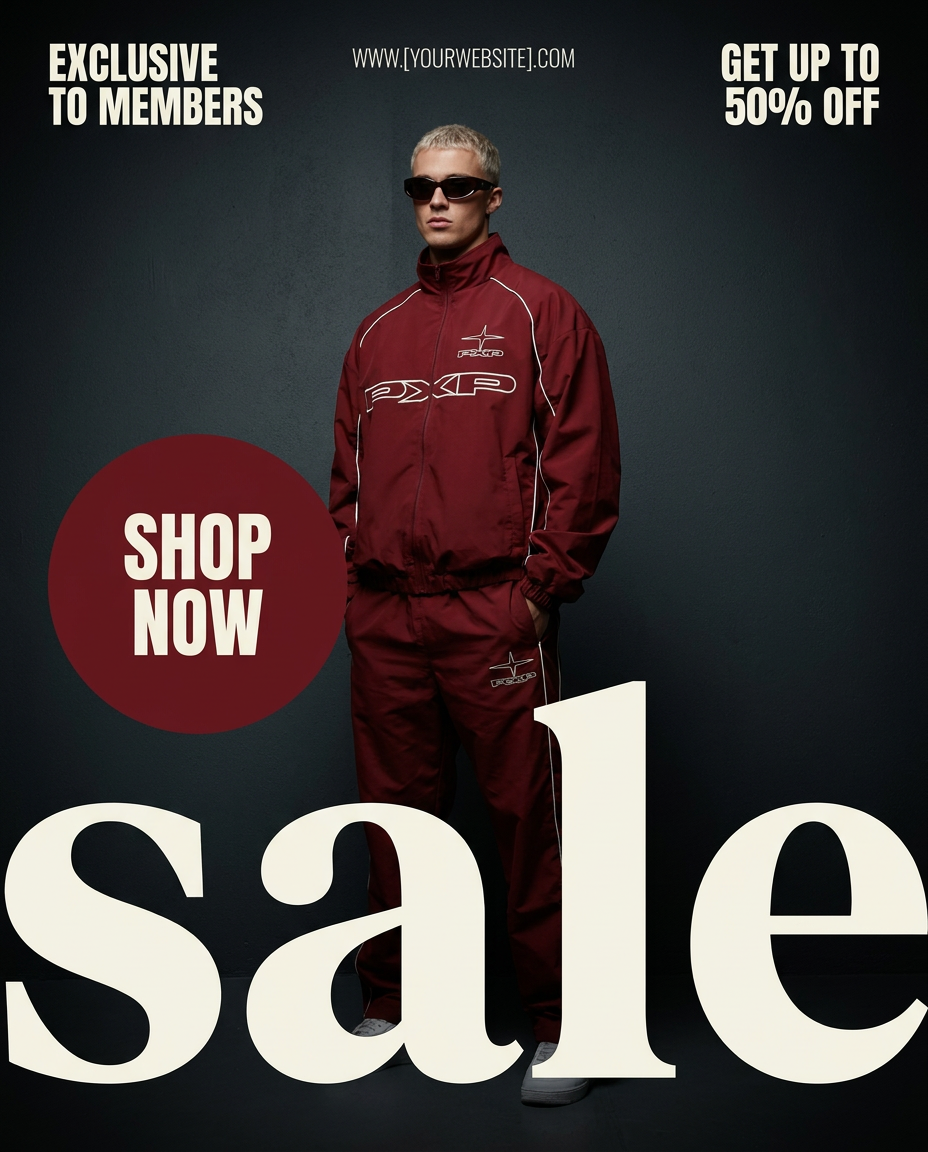
Turn any outfit photo into a high-end fashion promo poster. It centers your subject in a full-body shot against a dark, dramatic studio backdrop, perfectly cropped for social feeds. It gives your apparel a moody, editorial look instantly.
Regenerate using your own assets.
Your brand is custom, your motion should be too
The flood of one-click tools has made it easy to create generic content. But effective branding isn't about being generic; it's about being memorable. An off-the-shelf animation says nothing about your brand, while a custom motion identity speaks volumes.
By shifting from a template-first to a brand-first approach, you gain creative control. MyUP.ai provides the platform to execute this vision, using your Brandkit as the foundation and its integrated workflows to handle production. Stop picking from a list and start creating motion that is authentically yours.
