You’ve seen the incredible clips from new AI video models. You get an idea, type in a prompt to add a simple headline, and the result is… a wobbly, unreadable mess. The letters morph into each other, the spacing is inconsistent, and the entire message is lost in a sea of digital artifacts. You're not alone. This is the single biggest frustration for creators trying to use AI for practical, branded content.
While the hype around new models from Luma, Runway, and even Adobe is real, their ability to handle typography is often an afterthought. They treat your brand's name like any other object in the scene—something to be warped and animated. But your typography isn't just an object; it's a core part of your identity. Getting it wrong makes your content look unprofessional.
The solution isn't to spend days learning After Effects or to stitch together a clunky workflow exporting from one app to another just to add text. The solution is a brand-aware workflow that treats typography with the respect it deserves. Here’s how to do it in MyUP.
Why your AI-generated text looks like a melted mess
The “wobbly text” problem isn't a bug; it's a fundamental limitation of how most generative video AI models work. These models, often based on diffusion, learn to create visuals by analyzing millions of images and videos. When you ask them to create text, they are essentially trying to draw pixels that *look like* letters, rather than rendering actual, defined characters. They don't understand typography; they only understand shapes.
This leads to common failures:
- Inconsistent Letterforms: The letter 'e' might look different every time it appears in a sentence.
- Morphing and Warping: As the video animates, the letters stretch, shrink, and melt into each other because the AI is re-interpreting the shapes in every frame.
- Poor Kerning and Spacing: The space between letters is often erratic, making words difficult to read.
A professional motion designer in After Effects avoids this by working with vector-based text layers, which have defined mathematical properties. MyUP brings this same principle of stability to AI generation. Instead of asking the AI to guess what your font looks like, you provide it with the real thing.
The 3-step workflow for clean, on-brand animated text
Creating crisp, professional kinetic typography videos in MyUP doesn't involve complex timelines or keyframes. It’s a straightforward process centered on giving the AI the right instructions and brand assets from the start. This ensures the final output is something you can actually use, not just a weird experiment.
Step 1: Lock in your typography with a Brandkit
This is the most critical step and the key to MyUP's advantage. Before you generate anything, you establish your visual identity in a reusable Brandkit. Instead of describing your font in a prompt, you upload the actual font files (like .TTF or .OTF) and define your exact brand color hex codes.
By doing this, you're removing all the guesswork for the AI. The system no longer needs to imagine what “a bold, sans-serif font” looks like; it can render your brand’s specific typeface, like Helvetica Neue or Montserrat, with perfect accuracy. This single action is what separates a wobbly, amateurish result from a clean, brand-compliant video.
Step 2: Choose a layout and input your message
With your Brandkit active, all creations will automatically use your brand assets. The next step is to choose a starting point for your video. You can start from a blank canvas or use a template designed for clear communication. Look for layouts that prioritize typography and have a clear visual hierarchy.
For example, a simple, grid-based design is perfect for a bold statement or quote. You input your text, and MyUP automatically applies your brand font and colors. You are in control of the message and its visual foundation before any animation begins.
To get started with a clean, grid-based layout that’s perfect for a social media quote or announcement, you can use this workflow directly in MyUP.
Workflow code: #myup-n0bi-2wzk
Bold Editorial Grid Poster
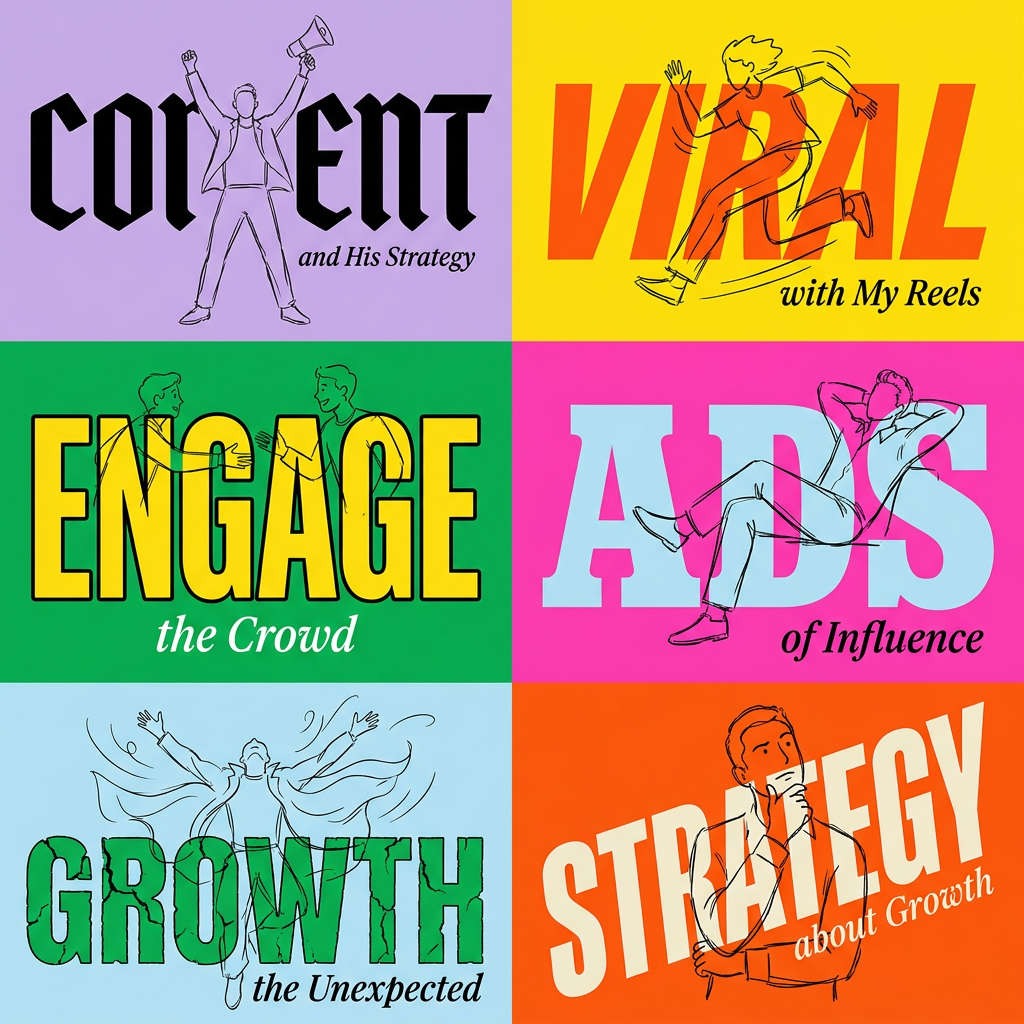
Create striking 2x3 editorial posters with six seamless, flat-color square cards in a perfect 4:5 grid. There are absolutely no gaps between the blocks, giving your content a bold, high-contrast magazine layout. It looks incredibly clean on any social feed.
Regenerate using your own assets.
Step 3: Generate, review, and refine the animation
Once your text and layout are set, you can tell MyUP to generate animated versions. The platform will create several variations with different motion styles—text might slide in, fade, pop, or have more complex movements. This is where AI handles the heavy lifting of production, but you remain in creative control.
You review the options and select the one that best fits the tone of your message. If you want something energetic, you might choose a fast-paced animation. If you need something more elegant, a slow fade might be better. The key is that MyUP executes the animation, but you validate the final result, ensuring it aligns with your creative vision.
Putting it to work: 2 kinetic typography ideas you can create now
This workflow is designed for speed and practicality. Here are two common use cases where you can replace static graphics with engaging, on-brand animated text videos in just a few minutes.
Use case: Create an animated event announcement
You have an upcoming webinar, product launch, or in-store event. Instead of a static image that can be easily ignored in a crowded social feed, you can create a short, dynamic video that calls out the key details: event title, date, and call to action.
Using a bold, high-contrast template, you can input your event details and let MyUP generate an eye-catching animation that grabs attention and communicates essential information instantly. This is far more effective than a simple image and takes virtually no extra time to produce.
To create a vibrant, retro-style event poster and animate it, start with this workflow.
Workflow code: #myup-xbur-hzoi
Bold Retro Yellow Event Poster
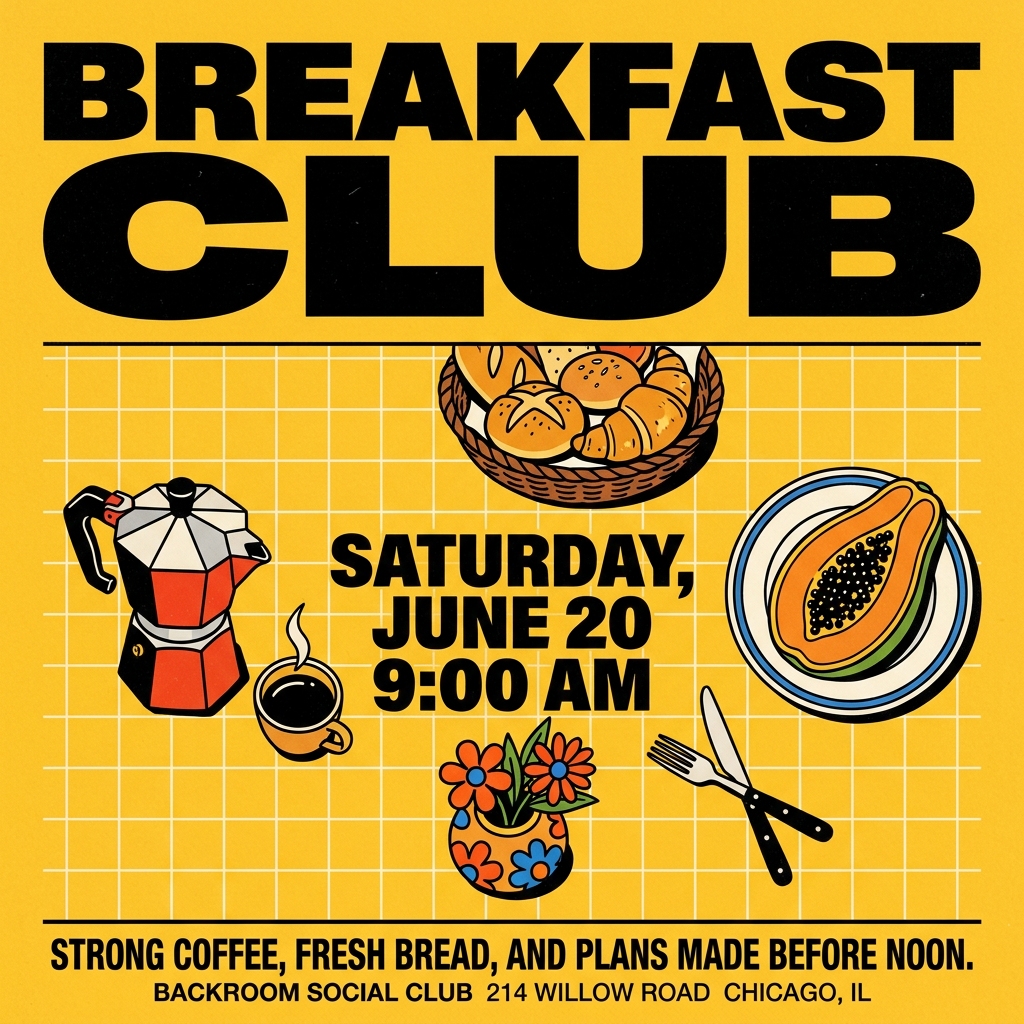
Turn your branding or event details into bold, nostalgic posters. It blends vibrant warm backdrops with a clean, retro square grid pattern to make any announcement look like a classic piece of mid-century graphic design.
Regenerate using your own assets.
Use case: Design a scrolling product feature callout
When launching a new feature or promoting a product, you need to communicate its benefits quickly. A kinetic typography video is perfect for this. You can create a simple video that lists out the top 3-4 features or benefits, with each one animating onto the screen in sequence.
This is ideal for social media ads on platforms like Instagram Reels or TikTok, where you have only a few seconds to make an impact. This approach is similar to creating an animated infographic, but focused on punchy, benefit-driven text. It ensures your message is not only seen but is also clean, readable, and perfectly aligned with your brand's visual style. You can even take a static product image and use a similar workflow to animate it into a dynamic video with text overlays.
For a clean, elegant product ad, this workflow is the perfect starting point.
Workflow code: #myup-fy77-jljs
Minimalist Elegant Product Advertising Poster
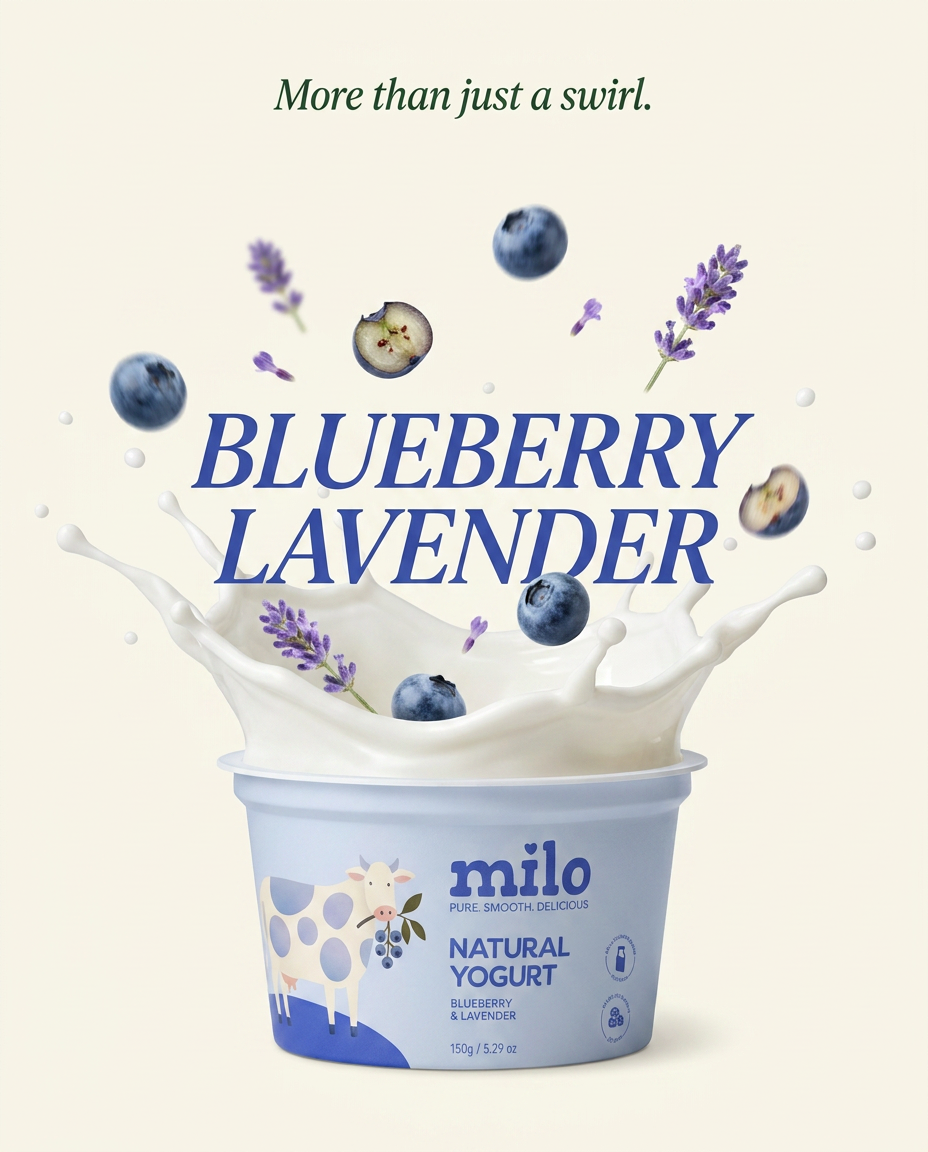
Turn any product shot into a high-end editorial ad. It places your item against a soft cream background with airy spacing and adds elegant, small serif typography at the top. Great for wellness or luxury brands wanting a calm, minimal aesthetic.
Regenerate using your own assets.
Control, not chaos: The key to professional AI video
The future of AI video isn't just about generating more realistic or fantastical scenes. For brands and creators, it's about control and consistency. The ability to produce content that is reliably on-brand is what separates a useful tool from a novelty. While other platforms are still struggling with the basics of readable text, a Brandkit-first workflow in MyUP gives you the control you need to create professional-grade content.
You don't need to be a motion designer or fight with unpredictable AI models. By giving the AI your precise brand assets, you can turn any message into a clean, compelling, and perfectly on-brand kinetic typography video. This is how you move from just experimenting with AI to putting it to work for your brand.
