
You’ve seen them all over X and design feeds recently: stunning, unique device mockups set in beautiful, atmospheric scenes. You’ve also likely felt the frustration that follows — the inability to replicate that quality for your own product. When you try, the AI either ignores your brand style, distorts your user interface, or produces something you can't possibly recreate for the next ad in your campaign.
So you fall back on the same sterile stock photos as your competitors. Your unique app ends up in a generic context that says nothing about your brand. There's a better way. This isn't about finding a better one-off generator; it's about adopting a reliable, repeatable workflow that gives you both creative control and brand consistency. This is the workflow for creating endless, custom, on-brand device mockups that actually showcase your software.
Your app is unique. Your mockups should be, too.
For any software or app business, the device mockup is a critical marketing asset. It’s the visual bridge between your product and your customer's world. Yet, most teams are stuck between two poor choices: soulless stock photography that makes them look generic, or one-shot AI images that are impossible to control or scale.
A stock photo of a laptop on a wooden desk doesn't tell your brand's story. It's visual filler. On the other hand, a single, lucky AI generation might look great, but it's a creative dead end. How do you create five more variations for A/B testing? How do you ensure the lighting, color palette, and mood match your brand guidelines? This is where most teams get stuck, and it’s why a reliable process beats a lucky prompt every time.
The two-part problem most AI mockup generators can't solve
The core challenge of creating a great device mockup with AI is that it’s actually two distinct creative tasks rolled into one request. This is the step where most one-off generators fail.
- Scene Generation: Creating a compelling, original, and on-brand environment. This is about mood, lighting, color, and context. Does your product live in a bright, minimalist startup office or a cozy, creative home studio?
- UI Placement: Placing a clean, pixel-perfect, and undistorted screenshot of your software onto the device's screen within that scene.
Trying to solve both with a single, complex prompt—like 'a woman in a modern office with my app on her screen' while uploading a screenshot—almost always leads to failure. The AI will bake a garbled, distorted version of your UI into the scene, making it unusable. The key is to separate these two steps and use a platform built for a complete workflow, not just a single image generation.
The repeatable workflow for perfect device mockups
The solution is a multi-step process orchestrated within a single platform. On MyUP.ai, you can build a workflow that separates scene creation from UI placement, all while being guided by your brand's specific visual identity. This approach turns a frustrating task into a scalable production system. Here’s how it works.
Step 1: Generate the world your product lives in
First, you create the context. Instead of just prompting for a laptop, you generate the entire scene. Your goal is to create a visual world that reflects your brand's personality. In MyUP, your saved Brandkit—containing your brand colors, fonts, and overall style—automatically influences the generation. The same prompt will yield dramatically different results for a playful B2C brand versus a sophisticated enterprise SaaS, ensuring the environment is always on-brand.
You can describe the scene in detail: 'A bright, airy home office with soft morning light, a minimalist desk with a laptop, a notebook, and a single green plant.' The AI generates the environment, complete with a device that has a blank screen, ready for your UI. This gives you a perfect, on-brand canvas.
For a clean, professional starting point, you can use a pre-built workflow in MyUP to generate the perfect studio environment for your device.
Workflow code: #myup-xjaq-qhgx
Luxury Product Photography Studio
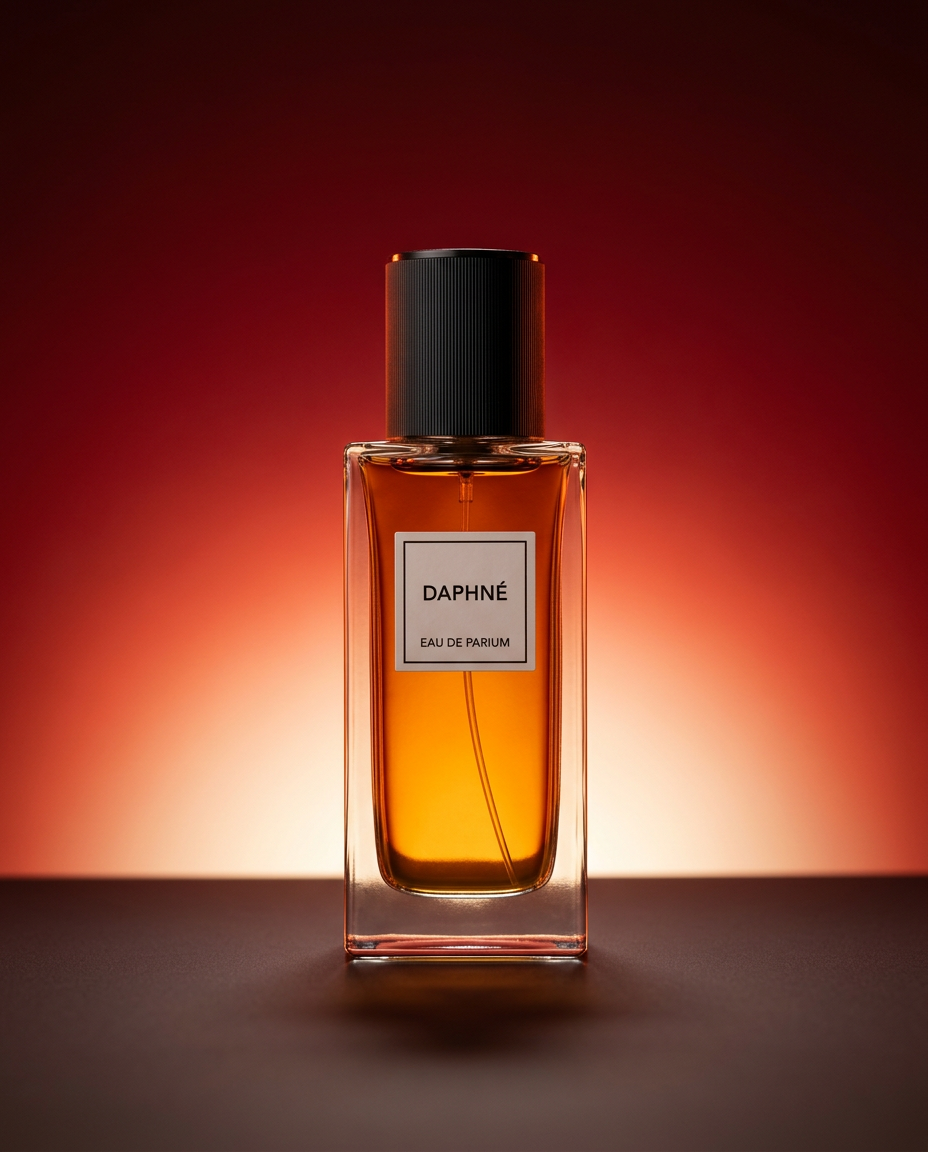
Drop your product into a dramatic, high-end studio setup. It places your item on a sleek flat surface against a rich crimson and orange cinematic gradient background. It's an easy way to get that moody, premium commercial look for any bottle, tech, or cosmetic.
Regenerate using your own assets.
Step 2: Place your UI with precision
Once you have your on-brand scene, the next step in the MyUP workflow is compositing. This is where you upload a high-resolution screenshot of your app or software. MyUP intelligently detects the screen on the device in your generated image and places your screenshot onto it, handling perspective and lighting adjustments automatically.
This is the critical 'human control' moment. MyUP handles the complex technical execution, but you validate the final result. You provide the clean UI asset, and the platform seamlessly integrates it. The result is a crisp, clear depiction of your product living inside a unique, custom-generated world. No distortion, no artifacts—just a perfect mockup.
Step 3: Scale from a single shot to a full campaign
The real power of this approach isn't making one perfect mockup; it's making dozens. Because you've built this as a workflow in MyUP, the entire process is saved and repeatable. You can re-run it with slight variations in the prompt to get different camera angles, lighting conditions, or background details. You can swap in different screenshots for various features of your app. This is how you move from a single image to a full-blown marketing campaign, as we detail in our guide to building entire campaigns with AI mockups.
Once your mockup is generated, you can use it as the foundation for a finished marketing asset. With another workflow, you can instantly turn your new visual into a polished ad or social media post, complete with your brand's typography and logo.
To create a vertical ad for social media stories, use this template:
Workflow code: #myup-sygb-rhnt
Minimalist Vertical Product Advertising Poster
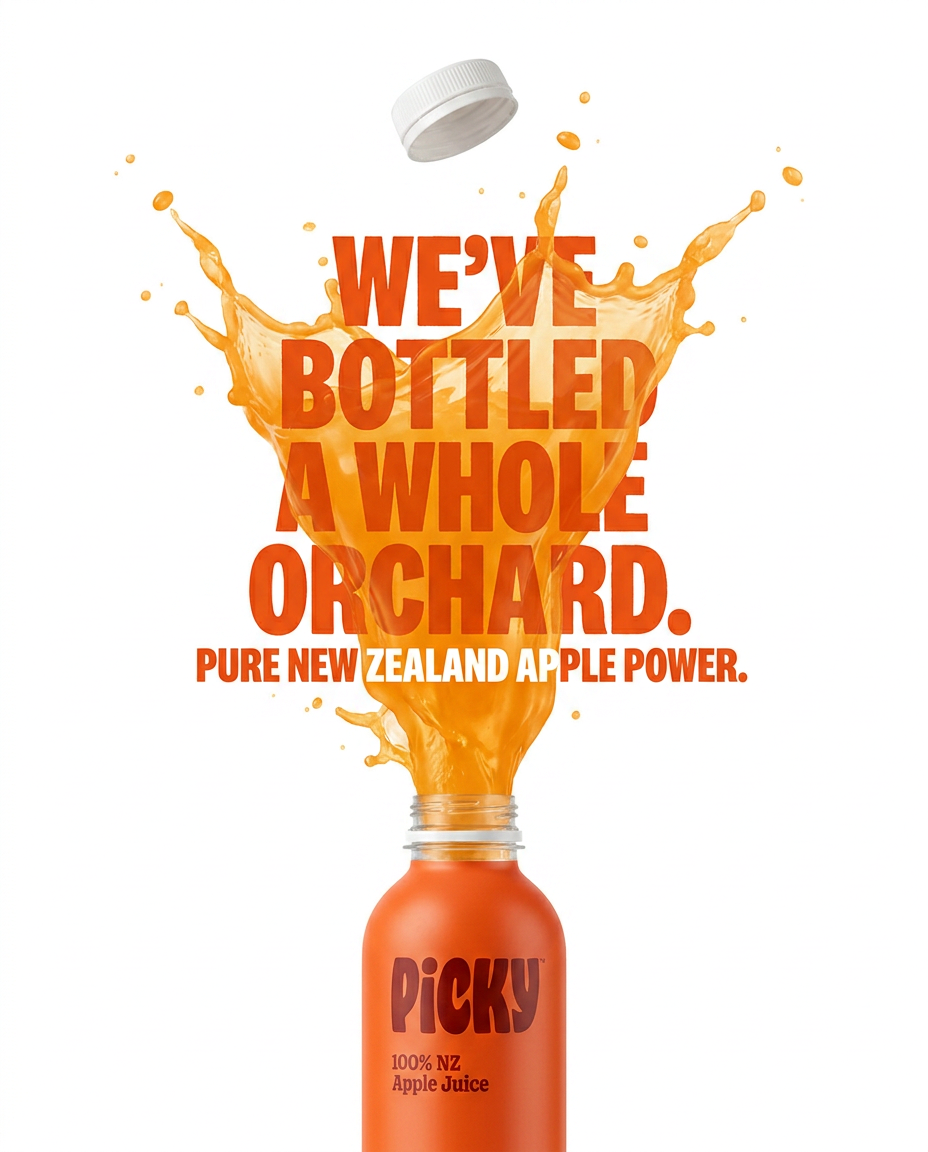
Drop the clutter and put your product in the spotlight. This setup places your item against a pure, seamless white background with a striking vertical flow that draws the eye straight up. It's perfect for creating clean, high-end studio posters.
Regenerate using your own assets.
For a more classic, elegant poster format, this workflow is ideal:
Workflow code: #myup-fy77-jljs
Minimalist Elegant Product Advertising Poster
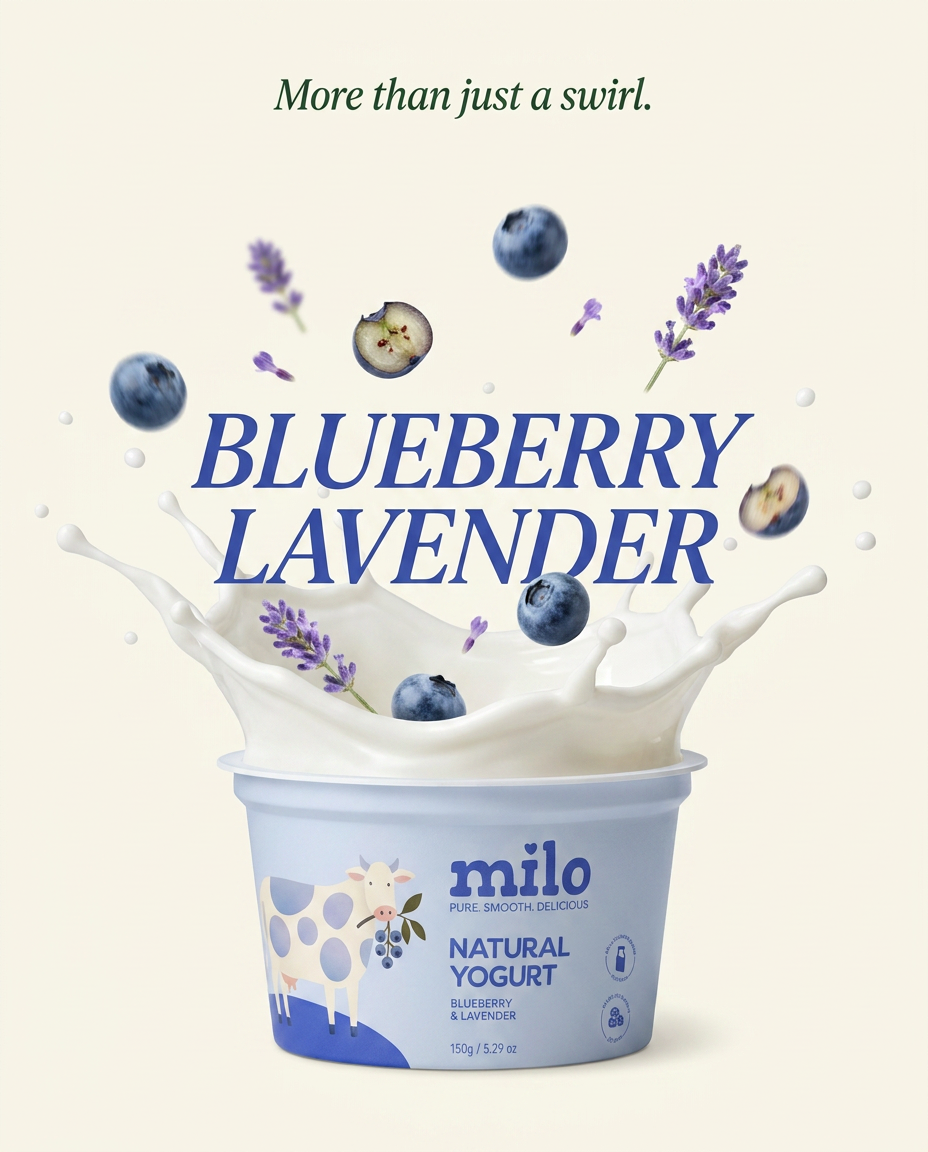
Turn any product shot into a high-end editorial ad. It places your item against a soft cream background with airy spacing and adds elegant, small serif typography at the top. Great for wellness or luxury brands wanting a calm, minimal aesthetic.
Regenerate using your own assets.
Beyond the mockup: telling your product's story
A great device mockup does more than just show what your software looks like. It tells a story about the value it provides and the world it belongs to. By moving beyond generic stock photos and embracing a repeatable AI workflow, you gain the ability to create an infinite library of custom, on-brand scenes. You’re no longer just showing your product; you’re showing the world it lives in. This is how you create visuals that are not only unique but also deeply connected to your brand's identity and narrative.
